
Setup
Install the plugin from Fab (or get the source from GitHub and copy it into your project's Plugins/ folder), enable Extended Affiliation System in Edit → Plugins and restart the editor. Everything below is done in the editor and in Blueprints.
1. Create Tags (Optional)#
Tags describe what a group is. Add them under the Affiliation tag in Project Settings → Gameplay Tags. For example:
Affiliation.Group.TeamAffiliation.Group.Team.RedAffiliation.Group.Team.Blue
You only need tags for the By Gameplay Tag decider and the tag filter nodes.
2. Create Groups#
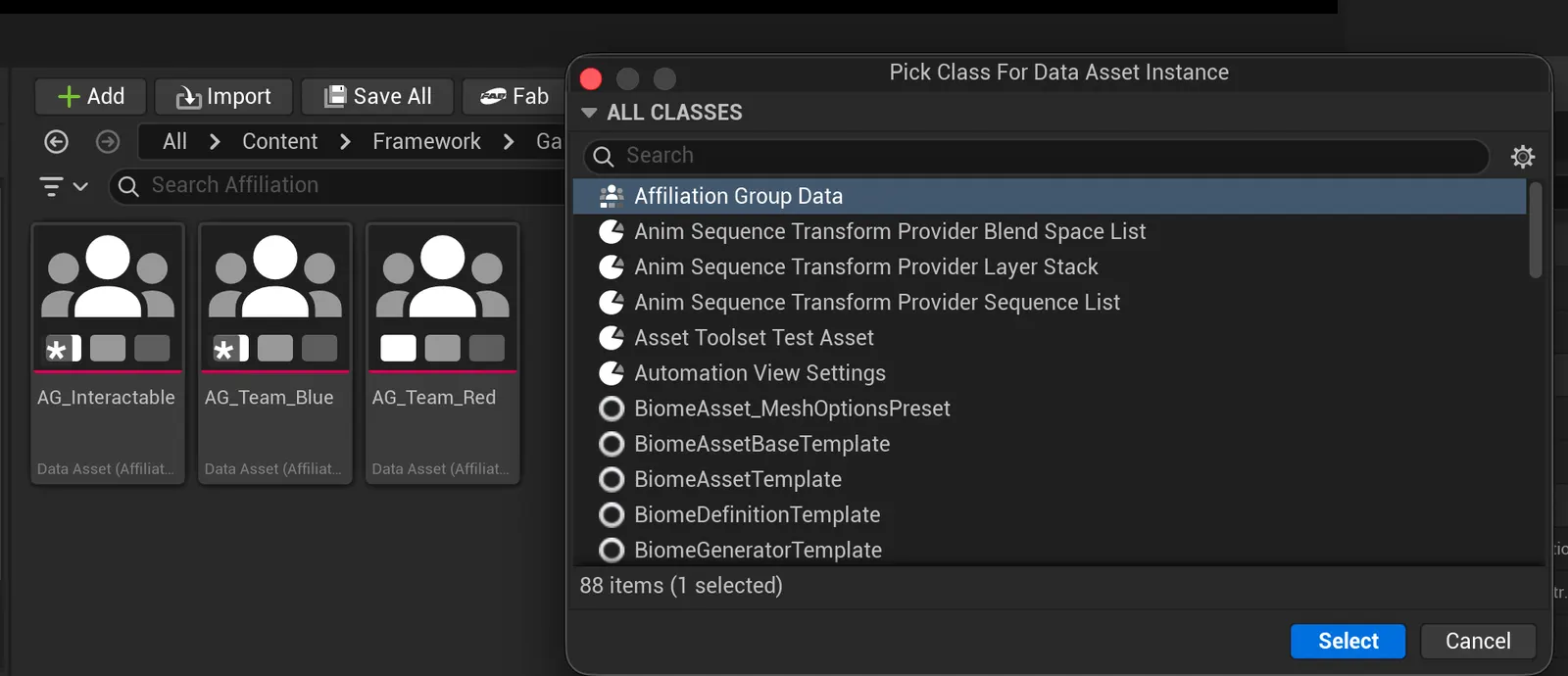
Create one data asset per faction or team: Content Browser → right click → Miscellaneous → Data Asset → Affiliation Group Data.
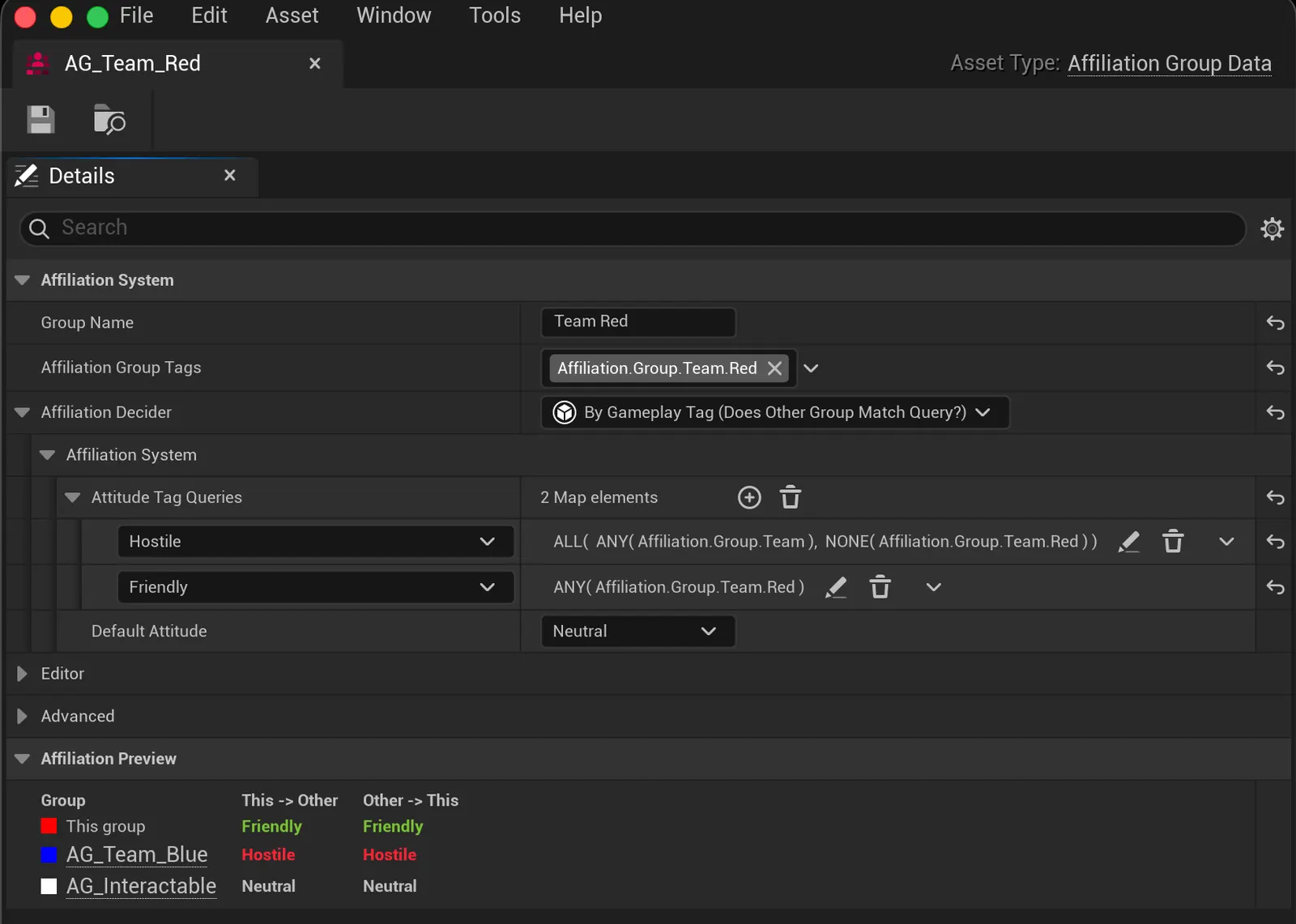
| Property | Description |
|---|---|
| Group Name | The group's name, shown in the debug view. |
| Affiliation Group Tags | What this group is. Other groups' rules can check these. |
| Affiliation Decider | How this group sees other groups. Empty means Neutral to everyone. |
| Debug Color | The group's color in the debug view and the preview. |
| Preview Priority | Higher numbers are listed first in the preview. |
Under Advanced there is also a Metadata Map for extra data like a color, an icon or a description for your UI.

Pick a Decider#
The decider is the group's rule. Every decider has a Default Attitude, used when its rule doesn't apply.
| Decider | Use it when |
|---|---|
| By Gameplay Tag | Rules come from tags, like "hostile to every team that isn't Blue". |
| By Explicit Reference | You want to list the groups yourself. |
| By Same Team | Free-for-all: friendly to its own members, hostile to everyone else. |
| Static | The group sees everyone the same way, like neutral props. |
| Universal (Both Ways) | Everyone sees this group the same way, and it sees them the same, like wildlife no one fights. |
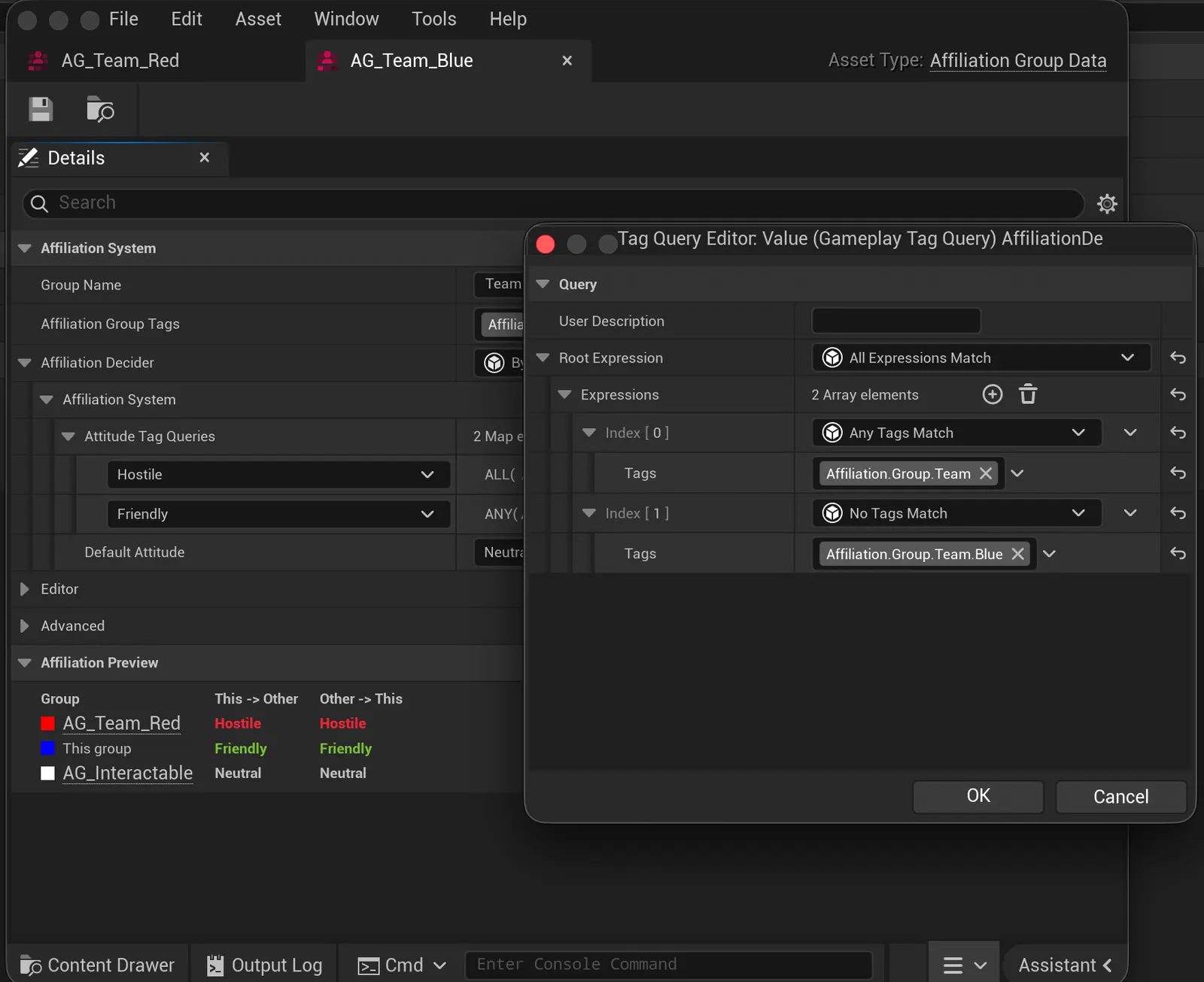
By Gameplay Tag has one tag query per attitude, tested against the other group's tags. It checks Hostile first, then Friendly, then Neutral. The first match wins.
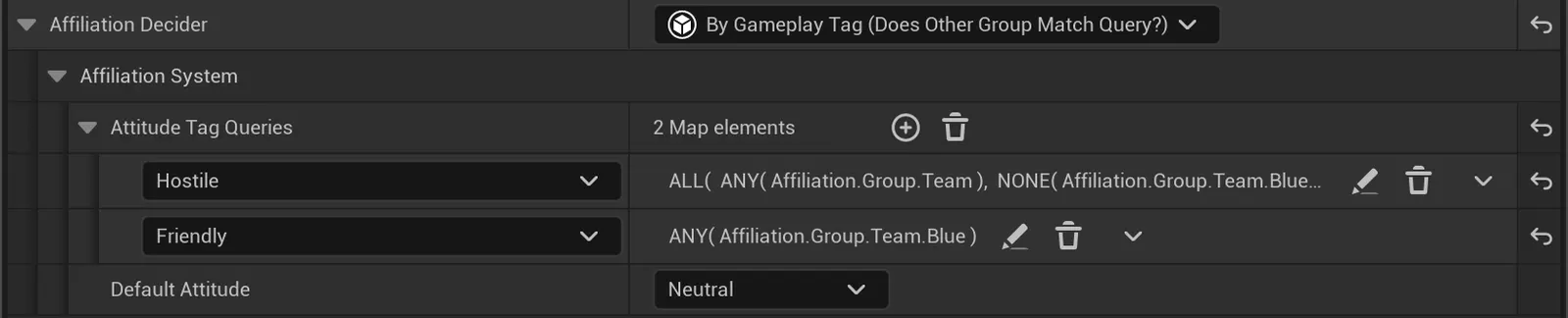
Here, Blue is Hostile to any team that isn't Blue, Friendly to Blue, and Neutral to everything else. Click the pencil icon to edit a query:
By Explicit Reference has one list of groups per attitude. A group may only be in one list.
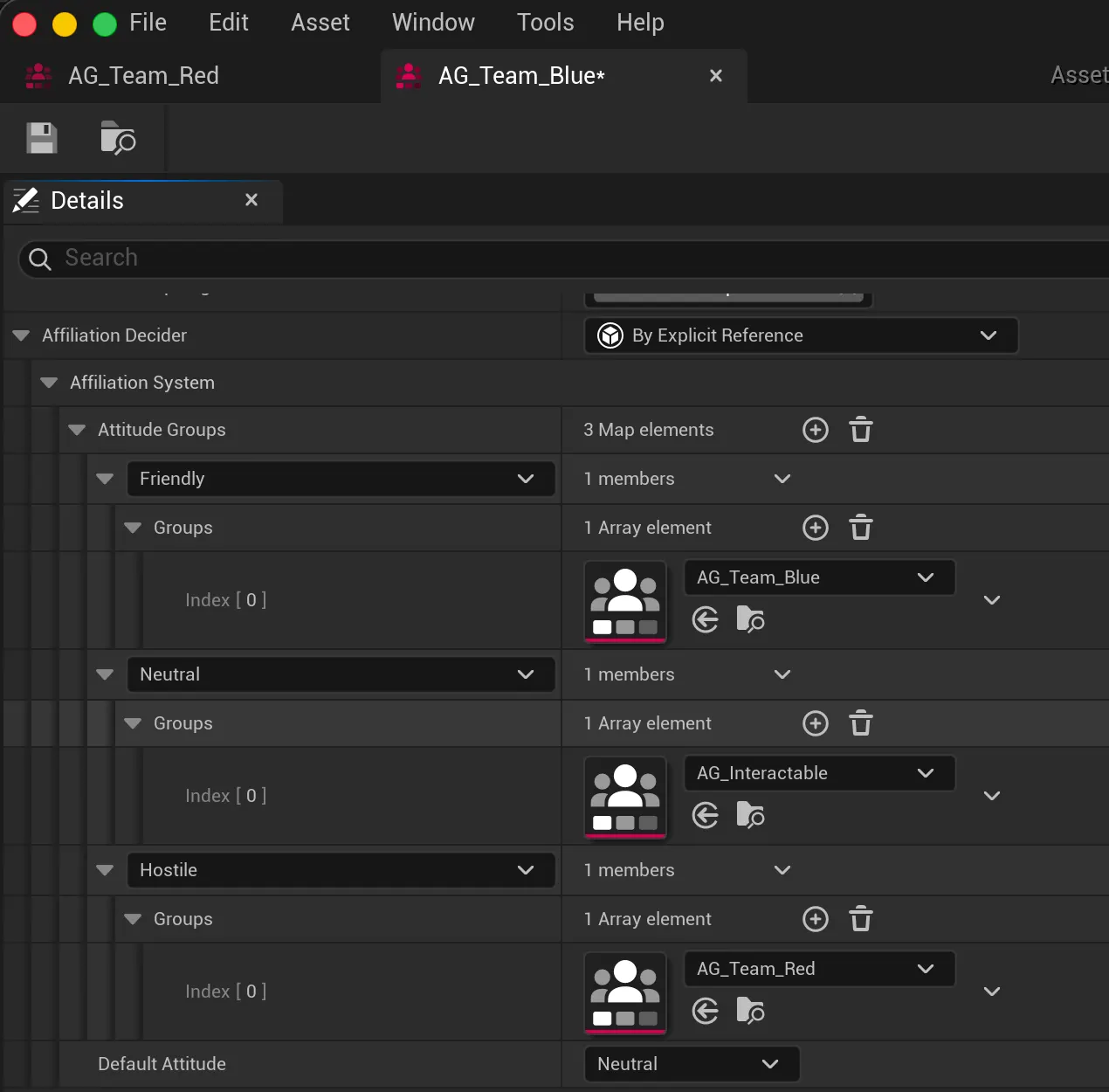
By Same Team sees its own members as Same Team Attitude and everyone else as Default Attitude.

Static always answers Default Attitude.

Universal (Both Ways) answers Default Attitude for itself and for every group looking at it, whatever their own rules say.

Check the Preview#
At the bottom of every group asset, the Affiliation Preview shows how this group and every other group see each other. Check it before you press Play.

3. Put Actors in Groups#
Add the Stimuli Source Affiliation Group Member component to the actor and set its Default Affiliation Group.
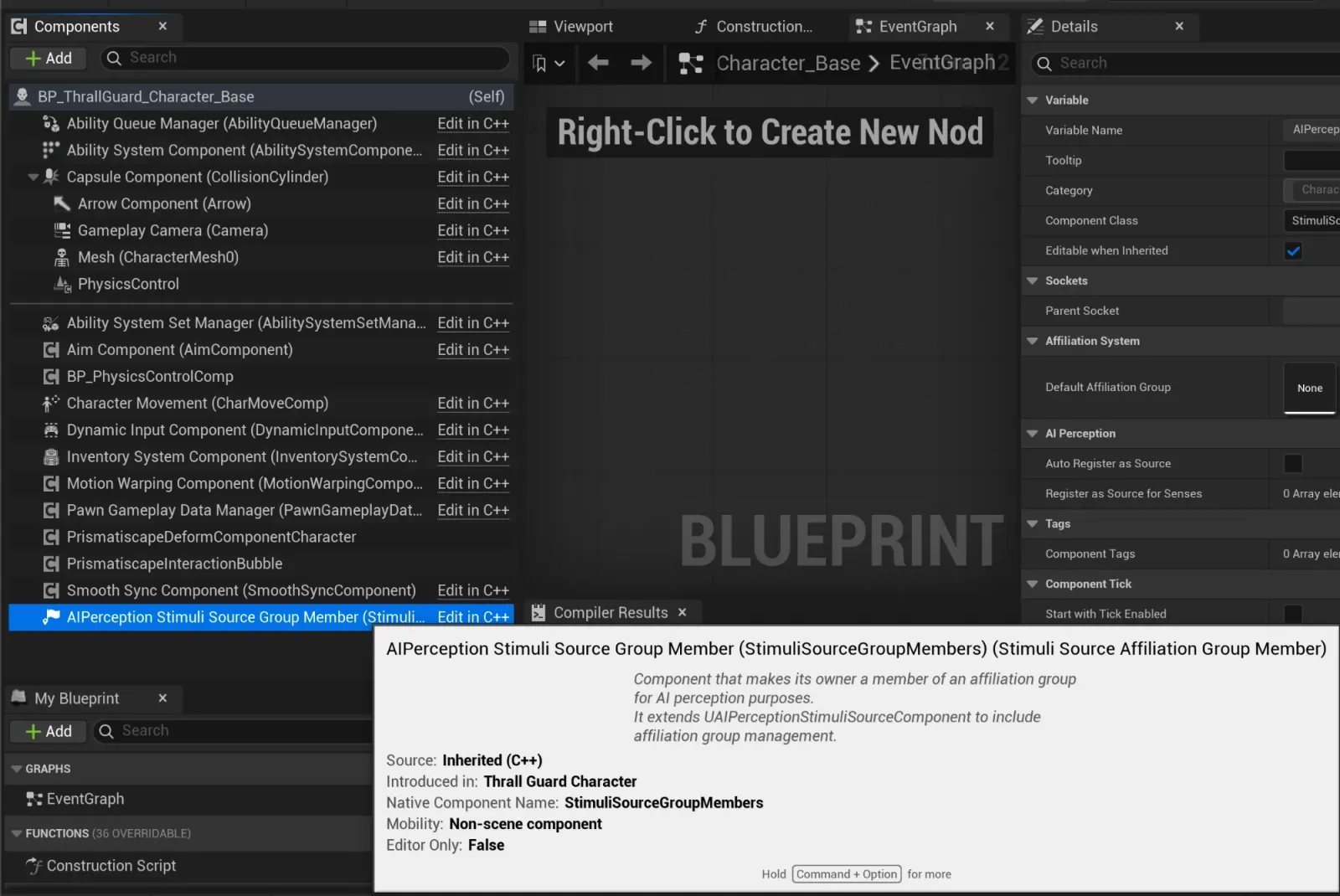
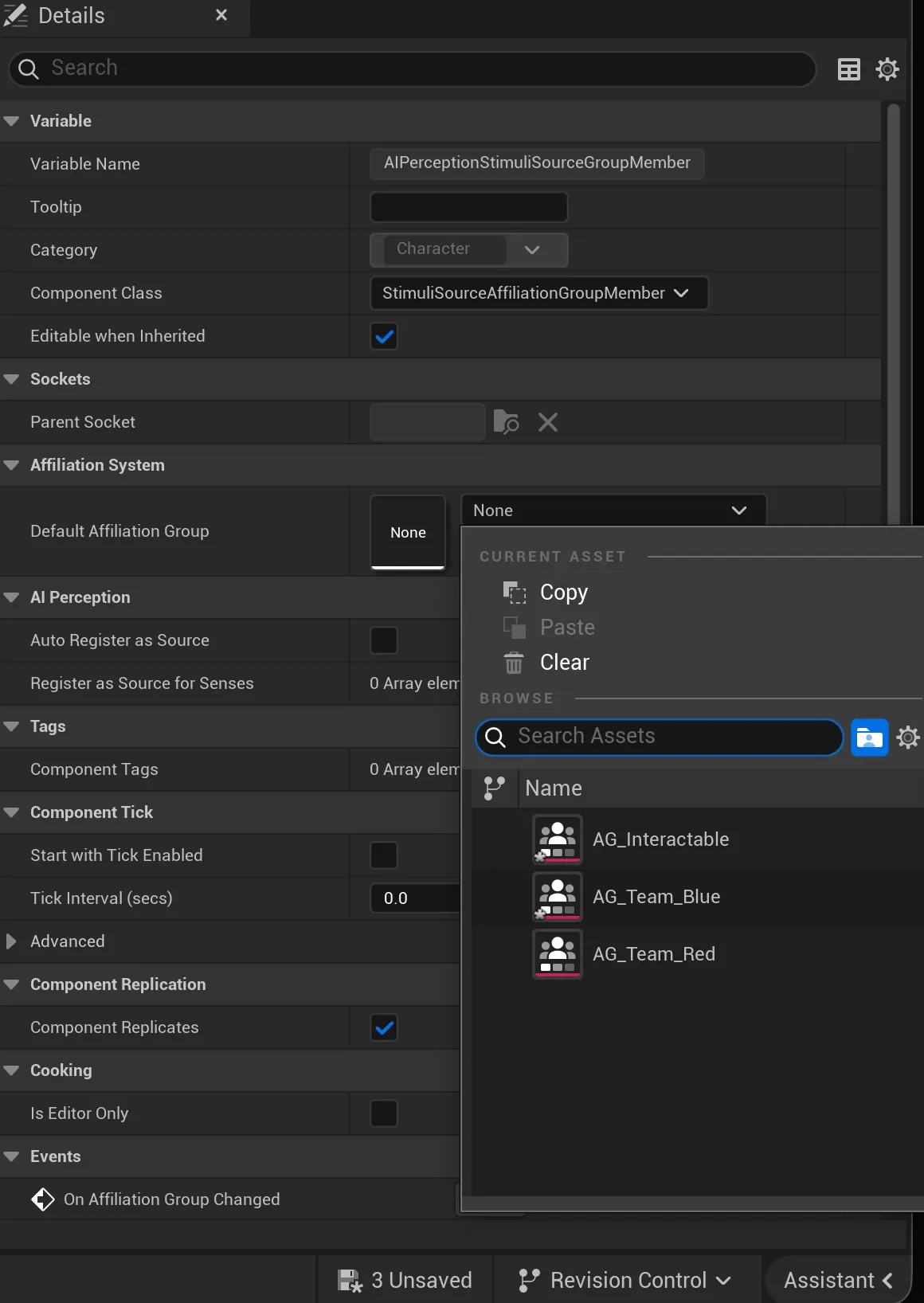
The component is also an AI Perception Stimuli Source, so AI can see and hear the actor with the same settings.
4. Give Players and AI a Group#
For players and AI, the group should belong to the controller, so it survives respawns.
- Add the Group Member Manager On Possessed Pawn component to your Player Controller or AI Controller.
- Set its Default Affiliation Group On Possessed Pawn.
- Give your pawns the Stimuli Source Affiliation Group Member component. The manager writes the group into it.
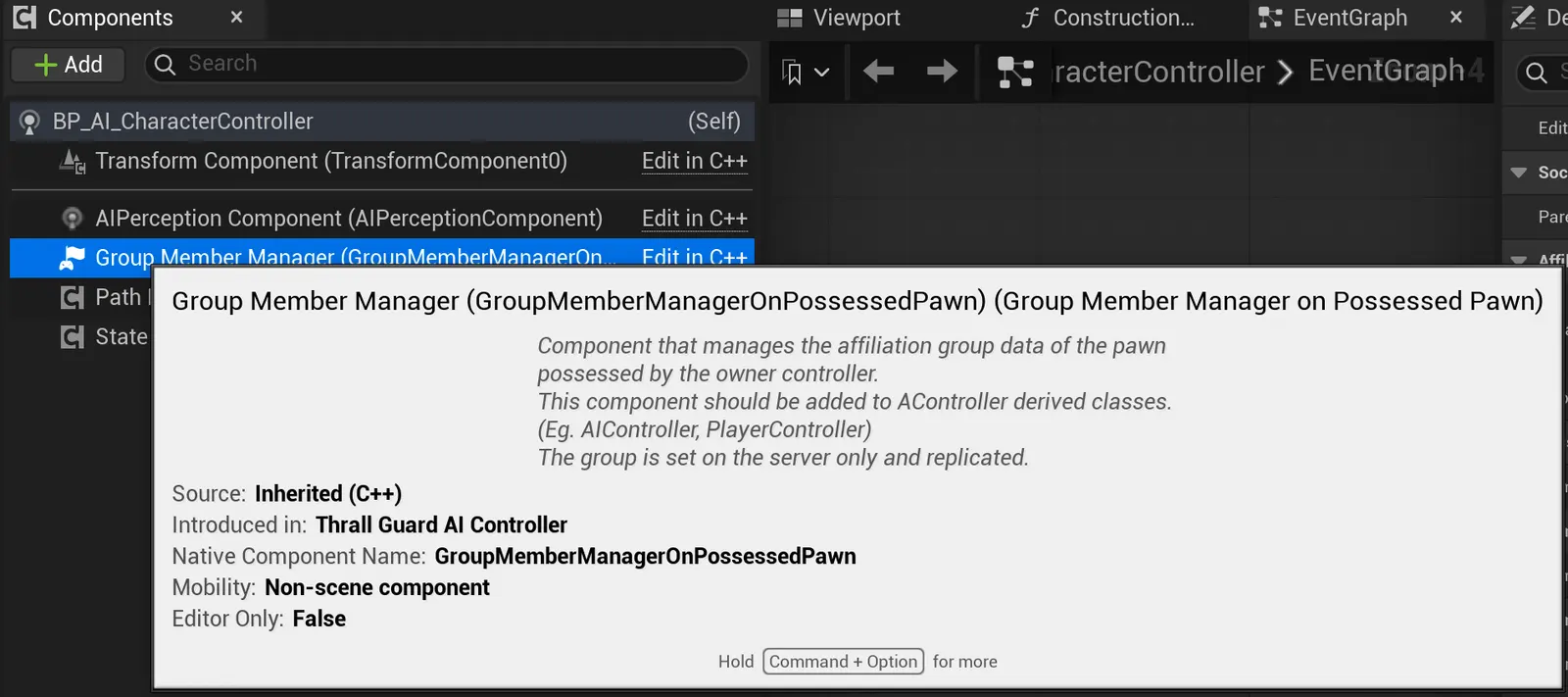
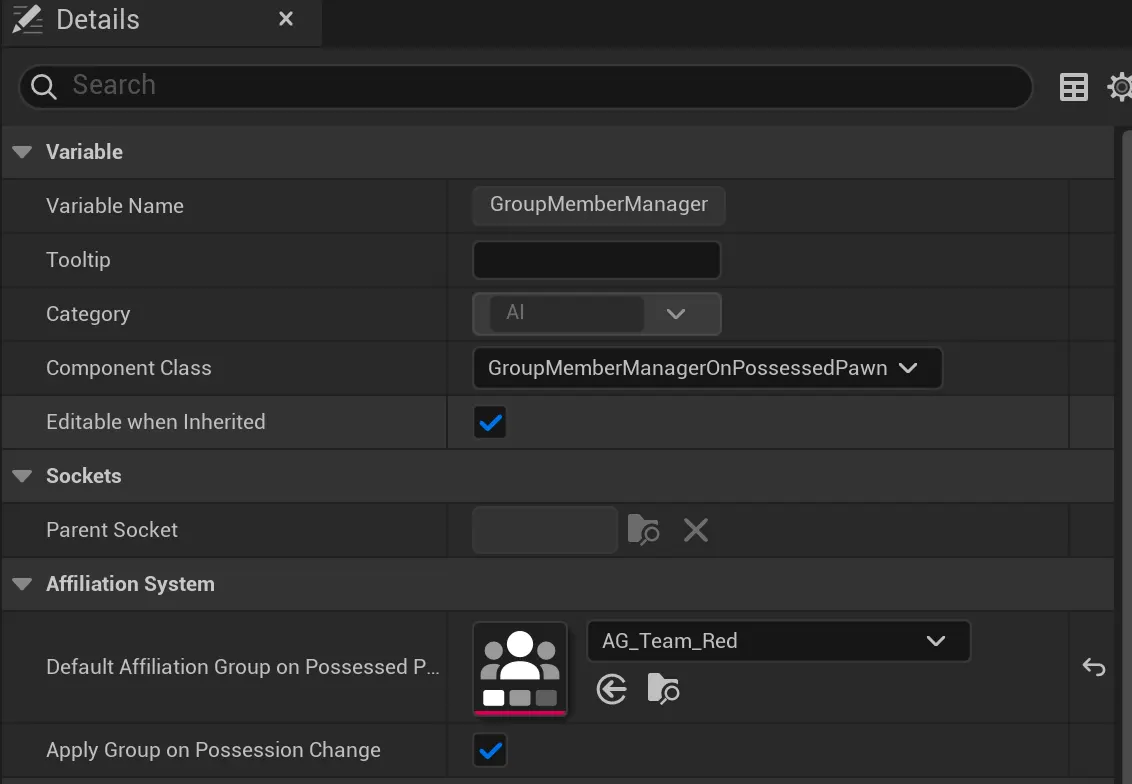
With Apply Group On Possession Change checked (the default), every pawn the controller possesses gets its group: after a respawn, in a vehicle, and so on.
That's it. Let's use it!